
Calibrite Display 123
4.0Editor score
Easy 1 2 3 workflow
Supports up to 2 displays
Before and after check
This comprehensive guide compares the top ten Monitor Calibration Tool options for professionals and enthusiasts, evaluating accuracy, ease of use, and
Choosing the right monitor calibration tool is essential for anyone who relies on accurate color representation in their digital workflow. Whether you are a professional photographer, video editor, or graphic designer, ensuring your display matches your output is crucial for delivering high-quality work. This guide explores the most effective tools available to help you achieve precise color accuracy.
We have carefully evaluated each product based on sensor technology, software capabilities, and compatibility with modern display types like OLED and Mini LED. Our selection process focuses on devices that offer reliable measurements, user-friendly interfaces, and robust validation features. Each entry in this list represents a distinct approach to solving the challenges of color management in 2026.
Each pick below highlights key strengths and potential trade-offs to help you decide which tool fits your specific needs and budget. Please note that product availability and pricing can change over time, so checking the latest details on the retailer site is recommended before making a final purchase decision. We update this list regularly to reflect new releases and user feedback.
4.0Editor score

4.3Editor score

4.0Editor score
The following table provides a side-by-side comparison of all ten selected monitor calibration tools, highlighting their core specifications and intended use cases to help you quickly identify the best fit for your workflow.



The Calibrite Display Pro HL stands out as a top choice for professionals who need reliable color accuracy across modern display technologies. With a high luminance sensor capable of measuring up to 3000 nits, it handles mini LED and OLED panels with ease. The included PROFILER software offers robust control over white point, gamma, and contrast, making it suitable for detailed design and photography work.
We may earn a commission when you buy through this link, at no additional cost to you.
One of its key strengths lies in its validation tools, which include Quick Check and uniformity checks to ensure your profile is reliable before you start critical editing. This feature reduces the risk of errors caused by screen glare or inconsistent brightness across the panel. Additionally, the ability to profile multiple monitors on the same computer ensures consistency in hybrid editing setups or multi-screen workstations.
While the price is higher than entry-level options, the investment is justified by the precision and versatility it offers for demanding workflows. The need for a USB C connection with an adapter is minor given the performance benefits, and the included travel pouch makes it easy to transport for field work. Users seeking a balance of advanced features and user-friendly operation will find this tool meets their needs.
Ultimately, this device is ideal for creative professionals who require dependable color management across various display types. Whether you are editing photos for print or grading video for HDR output, the Calibrite Display Pro HL provides the accuracy and tools necessary to trust your monitor. It remains a strong recommendation for anyone looking to elevate their color workflow in 2026.
The advanced sensor ensures accurate profiling on brighter modern displays, delivering dependable results for photo and design work where precise tone is essential.
Built-in tools help verify performance and reduce errors from screen glare, making it easier to trust your monitor when delivering client work.
We may earn a commission when you buy through this link, at no additional cost to you.
The Calibrite Display 123 is designed for photographers and creators who want accurate color without navigating complex settings. Its guided 1 2 3 workflow makes calibration fast and approachable, allowing users to achieve reliable results quickly. The compact body and adjustable counterweight ensure stable placement on screens, while the USB C connection provides modern compatibility with laptops and desktops.
We may earn a commission when you buy through this link, at no additional cost to you.
A standout feature for beginners is the before and after check, which lets you instantly see the difference after calibration using your own images. This visual confirmation builds confidence in the process and helps maintain consistent results over time. Additionally, the support for up to two displays means you can match colors across a dual-screen workspace without needing multiple tools.
While it lacks some advanced features found in higher-end models, such as HDR-specific tuning, it excels at core calibration tasks for standard displays. The affordability makes it an excellent entry point for those new to color management or those working on a tight budget. It delivers truer tones and reliable contrast, ensuring your images look closer to final output on other devices.
This tool is perfect for hobbyists, students, or professionals who need a straightforward solution for everyday editing tasks. By simplifying the calibration process, it removes the barrier to entry for maintaining display accuracy. For those prioritizing ease of use and value, the Calibrite Display 123 offers a solid performance at a accessible price point.
The easy 1 2 3 software workflow helps photographers and creators achieve more accurate color without complicated settings.
Calibrates up to 2 monitors for matching color across a multi screen workspace, ideal for photo editing and video work.
We may earn a commission when you buy through this link, at no additional cost to you.
The Calibrite Display Plus HL is engineered for video editors and colorists who work with ultra-bright HDR capable monitors. Its advanced HL sensor measures up to 10000 nits, allowing for accurate calibration of displays that push the limits of luminance. This capability ensures consistent highlights, clean blacks, and reliable grading decisions that are critical for high-end post-production work.
We may earn a commission when you buy through this link, at no additional cost to you.
It supports broadcast standards including Rec.709 and includes BT.1886 tone curve options for Rec.2020 workflows, helping maintain smoother tonal detail and accurate monitoring across video production pipelines. The included PROFILER software offers advanced modes for full adjustment of white point, luminance, and contrast, supporting custom patch sets and shared presets for consistent team workflows.
Professional validation tools help you trust the result, including Quick Check, Profile Validation, and Uniformity Check, which are essential when delivering work to clients or broadcast facilities. The multi-monitor profiling feature supports matched color across multiple display editing setups, ensuring consistency in complex environments. While it is a premium investment, the precision it offers justifies the cost for professional video production.
This device is best suited for high-end production studios or individuals who require the highest level of accuracy for HDR grading. If your workflow involves standard photo editing or basic color correction, a lower-tier model may suffice, but for broadcast quality work, this tool provides the necessary control. It remains a top recommendation for serious video professionals in 2026.
Measures ultra bright displays up to 10000 nits for accurate calibration of HDR capable monitors.
Supports broadcast standards including Rec.709 and BT.1886 tone curve options for Rec.2020 workflows.
We may earn a commission when you buy through this link, at no additional cost to you.
The Datacolor Spyder X Pro brings groundbreaking lens-based color engine technology to ensure accurate color for photographic images and is ideal for first-time users. It features a quick and easy single-click calibration with a wizard workflow that includes twelve predefined calibration targets for advanced color accuracy. The process is designed to be so intuitive that you do not have to be a color expert to get professional results.
We may earn a commission when you buy through this link, at no additional cost to you.
Room-light monitoring and automatic profile changing are significant advantages that help maintain accuracy as environmental conditions shift throughout the day. The SpyderProof functionality provides before-and-after evaluation of your display using your own images, allowing you to see the difference instantly. This visual feedback is crucial for understanding the impact of calibration on your specific workflow.
While it may lack some modern HDR-specific features, its precision on standard displays remains strong, making it a reliable choice for photographers. The ability to calibrate multiple laptops and desktop monitors adds flexibility for users with hybrid setups. The speed of calibration is another benefit, taking just a minute or two to achieve color precision.
This tool is perfect for photographers who want reliable accuracy without diving into complex technical settings. The balance of ease of use and precise sensor technology makes it a standout for entry-level to intermediate users. If you are looking for a straightforward way to ensure your photos look correct on screen, this device delivers consistent results.
Features quick and easy single-click calibration and wizard workflow with 12 predefined calibration targets.
SpyderProof functionality provides before-and-after evaluation of your display and allows you to see the difference using your own images.
We may earn a commission when you buy through this link, at no additional cost to you.
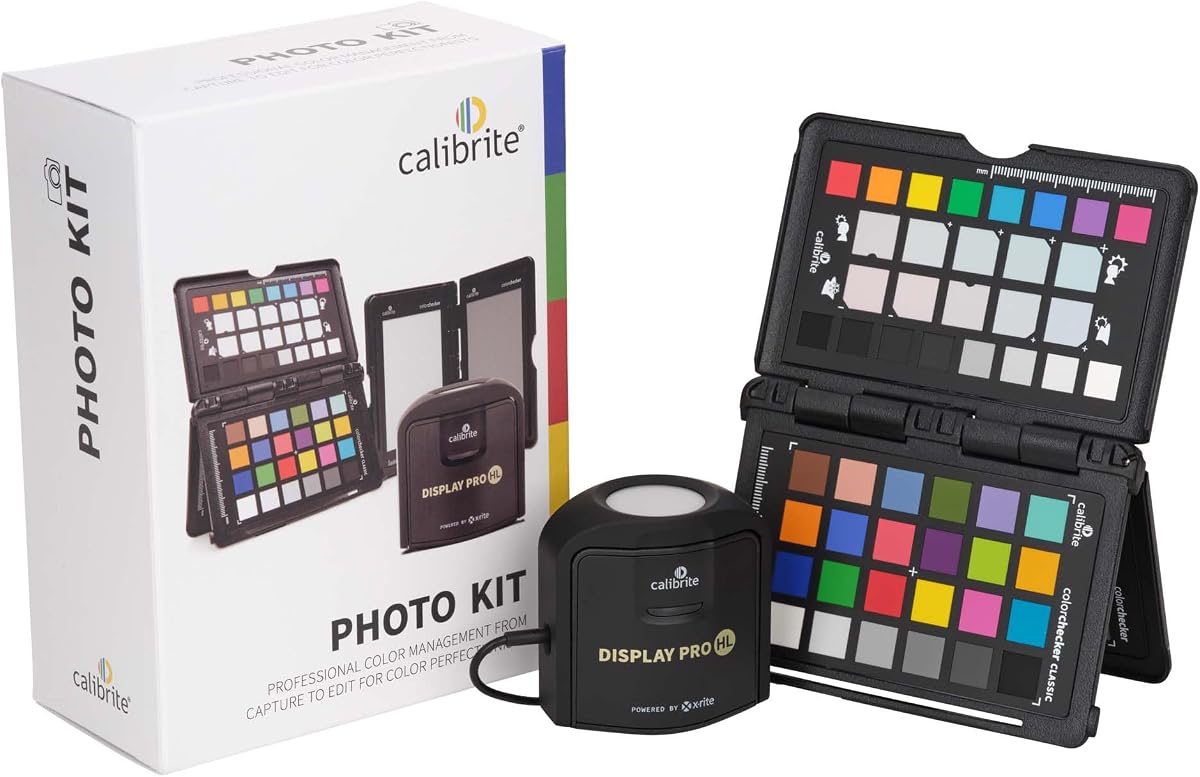
The Calibrite Photo Kit combines the Display Pro HL high luminance monitor calibration colorimeter with the ColorChecker Passport Photo 2 to create a complete photo workflow solution. This kit supports custom camera profiles for RAW still workflows and accurate monitor calibration for photo editing on modern display technologies including mini LED OLED and Apple XDR. It provides a unified path from capture to final edit with consistent color.
We may earn a commission when you buy through this link, at no additional cost to you.
Using the Passport Photo 2 allows you to enable custom camera profiles and supports consistent white balance and exposure reference, improving repeatability and reducing unwanted shifts before grading or retouching. The Display Pro HL component ensures that what you see while editing is closer to final output by calibrating and profiling modern laptop and desktop displays. This combination reduces color guesswork significantly.
The Calibrite PROFILER software included provides presets and customizable targets such as white point and gamma, helping you start from a neutral baseline and refine creative color with greater confidence and consistency. This holistic approach is particularly beneficial for photographers who need to trust both their camera output and their screen display during processing. It simplifies the workflow by keeping all tools in one package.
If your work involves significant RAW editing and you require color consistency from the moment you take the shot to the final file, this kit is an excellent investment. It saves time by integrating camera profiling into your routine, ensuring that your edits reflect reality. This makes it a strong recommendation for professionals who value precision throughout their entire capture process.
Combines camera profiling and monitor calibration to create a consistent capture to edit process.
Passport Photo 2 enables custom camera profiles for RAW workflows and supports consistent white balance.
We may earn a commission when you buy through this link, at no additional cost to you.
The Datacolor Spyder X Elite is designed for expert and professional photographers and motion imagemakers who need advanced control over their display settings. It features a step-by-step assistant and expert console with an all-in-one calibration control panel that offers unlimited calibration setting choices including TV and video standards. This depth of control ensures you can fine-tune every aspect of your display for precision work.
We may earn a commission when you buy through this link, at no additional cost to you.
Calibrating your monitor to achieve color precision now takes just a minute or two, several times faster than previous models. The groundbreaking lens-based color engine provides a higher level of color accuracy for multiple monitors and projectors, ensuring that your work translates well across different outputs. Room-light monitoring and automatic profile changing further enhance reliability over time.
For professionals who work in hybrid photo and video environments, the support for video standards makes this tool versatile. You can see the difference instantly with SpyderProof functionality, which includes full-screen images including your own for evaluation. The interface is designed so you do not have to be a color expert to access these advanced capabilities, yet it offers depth when needed.
This device is best for those who require both speed and advanced options in their daily workflow. Whether you are grading video or editing high-resolution photos, the unlimited settings allow you to define parameters that match your specific needs. It remains a trusted option for professionals who have relied on its accuracy in the past.
Features an all-in-one calibration control panel and unlimited calibration setting choices including TV and video standards.
Calibrating your monitor to achieve color precision now takes just a minute or two.
We may earn a commission when you buy through this link, at no additional cost to you.
The Datacolor Spyder4Pro offers automated color and brightness calibration using a full-spectrum color sensor to ensure consistent results. The fourth-generation Spyders have double-shielded color filters for even closer match to CIE color standards and improved long term stability. This design reduces errors and provides an average accuracy that is up 26% better than older generations.
We may earn a commission when you buy through this link, at no additional cost to you.
Consistency between Spyder units is 19% better, which is important if you work with multiple calibration devices or share files across workstations. The ReCAL feature makes it quick and easy to recalibrate your display to compensate for changes over time, helping maintain accuracy without needing a full re-profile. This is a practical feature for maintaining color integrity throughout the day.
While the software interface is older compared to newer wizard-driven tools, it still delivers the core functionality needed for accurate calibration. It allows you to calibrate multiple displays with a single sensor, which is useful for multi-monitor setups. For those who prefer straightforward automation without unnecessary complexity, this tool remains reliable for standard display types.
This device is a solid choice for users who prioritize stability and proven accuracy over modern aesthetic design or advanced features. If you are upgrading from an older model, the improvement in consistency and speed will be noticeable. It continues to provide dependable color correction for photographers and designers who need a budget-friendly yet effective solution.
Double-shielded color filters provide closer match to CIE color standards and improved long term stability.
The ReCAL feature makes it quick and easy to recalibrate your display to compensate for changes over time.
We may earn a commission when you buy through this link, at no additional cost to you.
The ASUS ProArt CaliControl offers a 3-in-1 multiple function with Colorimeter, Display OSD control, and ASUS Dial features tailored for users of ASUS displays. It includes an integrated colorimeter with both hardware and software calibration capabilities to keep long-term color accuracy and consistency. The device measures up to 10000 nits for precise HDR calibration, making it compatible with LED, OLED, and Mini-LED panels.
We may earn a commission when you buy through this link, at no additional cost to you.
The reversible USB-C connection provides effortless and quick connectivity, and the 5-way navigator and shortcut key provide intuitive Display OSD control accessible within the reach of your hand. It also integrates the ASUS Dial for customizable shortcuts that allow easy, precise control of your creator software. This combination of hardware controls is unique in the market for those invested in the ASUS ecosystem.
However, it is worth noting that user feedback has been mixed, with lower ratings compared to other tools in this list. This may be due to software limitations or compatibility issues with non-ASUS displays. Before purchasing, it is important to confirm that this device works well with your current monitor model and software environment to ensure you get the intended benefits.
For users who already own ASUS ProArt monitors, this tool could offer streamlined control and calibration in one package. The unique OSD integration reduces the need to navigate on-screen menus manually, saving time during adjustments. If you value hardware shortcuts and specific monitor control, it is worth testing to see if it meets your workflow needs.
5-way navigator and shortcut key provide intuitive Display OSD control accessible within the reach of your hand.
Integrate ASUS Dial provide customize shortcuts for easy, precise control of your creator software.
We may earn a commission when you buy through this link, at no additional cost to you.
The Datacolor Spyder X2 Elite offers custom calibration features tailored for users wanting more advanced options including video and cinema targets for Rec. 709 and Rec. 2020 workflows. It includes advanced display mapping and analysis alongside unlimited calibration settings and soft proofing. The Studio Match feature supports multiple monitor calibration, making it ideal for hybrid photo and video work environments.
We may earn a commission when you buy through this link, at no additional cost to you.
The remastered software provides a cleaner more concise user interface experience that is easier to navigate compared to previous iterations. This is ideal for both photography and video work, allowing a range of skill levels to access expert-recommended calibration presets or define your own parameters. Native USB-C connection also includes a USB-A adaptor for added convenience across different computers.
From novice to pro, the features allow you to tailor the tool to your specific needs. If you are a new user, the presets help get started quickly without diving into complex settings. If you are an expert, the advanced mapping and analysis tools provide the depth you need for precise grading. The software interface updates make the experience more modern and efficient.
This device is a strong option for those who need to bridge the gap between still photography and video production. The support for cinema standards ensures that your workflow remains consistent across different media types. For creators working in mixed environments, this level of versatility is essential for maintaining quality across all deliverables.
Includes Video & Cinema Targets (Rec. 709, Rec. 2020) and unlimited calibration settings.
Spyder X2 Elite's remastered software provides a cleaner more concise user interface experience.
We may earn a commission when you buy through this link, at no additional cost to you.
The Datacolor Spyder4Elite provides automated color and brightness calibration with a full-spectrum color sensor to calibrate all your LED, OLED, LCD and CRT displays, laptops and front projectors. The fourth-generation Spyders have double-shielded color filters for even closer match to CIE color standards and improved long term stability. This ensures average accuracy that is up 26% better than previous generations.
We may earn a commission when you buy through this link, at no additional cost to you.
The ReCAL feature makes it quick and easy to recalibrate your display to compensate for changes over time without needing a full reprofile. This helps maintain consistency between Spyder units and ensures your display stays accurate as environmental conditions shift. While this model is older, it still offers robust capabilities for standard display types including older CRT monitors if you have legacy equipment.
The main trade-off is that software support and newer features found in later generations may not be available. However, for users who require a simple, effective calibration solution for older monitors or specific industrial displays, it remains a viable option. The hardware stability and sensor precision continue to hold value for basic color correction needs.
This device is a legacy choice that still delivers functional results for those who need to calibrate a wide range of display types including CRT. It is best for users on a strict budget who do not require modern HDR or OLED specific tuning. If you have specific legacy hardware needs, this tool offers the compatibility you need.
Calibrates all your LED, OLED, LCD and CRT displays, laptops and front projectors.
Consistency between Spyder units is improved with double-shielded color filters.
We may earn a commission when you buy through this link, at no additional cost to you.
Selecting the right monitor calibration tool involves evaluating several factors to ensure it fits your specific workflow and display technology. Consider the following elements to make an informed decision.
Sensor technology directly impacts the precision of your calibration. High luminance sensors are crucial for modern displays like OLED and Mini LED that can reach extreme brightness levels. Look for tools that offer full-spectrum sensors and double-shielded filters to ensure measurements match CIE color standards closely. Higher accuracy reduces the risk of color shifts when moving files between devices.
Choose a tool with a sensor that supports your display's brightness range to avoid under-calibration or errors in dark and bright areas.
The software that comes with your calibration tool is just as important as the hardware. Advanced software allows you to control white point, gamma, and contrast with precision. Some tools offer guided workflows for beginners while others provide advanced modes for professional grading. Look for features like validation tools and soft proofing to verify results before finalizing edits.
Prioritize software that supports your operating system and offers regular updates to keep up with new display technologies.
Not all calibration tools support every display type. Ensure your tool works with your specific monitor, including LCD, OLED, Mini LED, or CRT if you have legacy equipment. Some models specialize in HDR workflows with support for broadcast standards like Rec.709. Compatibility is essential to ensure the tool can communicate correctly with your display settings.
Verify that the tool supports modern high brightness panels and HDR output if you work with video or high-end photo editing.
A tool that is difficult to use may lead to skipped calibration steps and inconsistent results. Look for intuitive interfaces with clear instructions and wizard workflows if you are new to calibration. Physical design features like adjustable counterweights and compact bodies help keep the device stable during the process. User-friendly tools save time and reduce the likelihood of errors.
Choose a device with a guided workflow if you want quick setup without compromising on the accuracy of the final profile.
Validation tools help you trust the results of your calibration before starting critical work. Features like Quick Check, profile validation, and uniformity checks can identify errors caused by screen glare or hardware issues. Before and after comparisons are useful to confirm improvements and maintain confidence in your display over time. These features are especially important for client work where accuracy is critical.
Opt for a tool with robust validation features to ensure your profile is reliable and consistent across different lighting conditions.
Most modern tools use USB C connections for faster data transfer and compatibility with current laptops. Some include adapters for USB A ports to ensure you can connect to older systems. Consider whether you need a travel storage pouch if you work from multiple locations. A compact design and durable build quality make the device easier to transport without damage.
Select a tool with the connection type that matches your current computer setup and includes necessary adapters for flexibility.
If you work with multiple screens, calibrating them to match each other is essential for a seamless workflow. Tools that support profiling multiple monitors on the same computer allow you to share presets for workgroup consistency. This ensures that your image looks the same on every screen, which is vital for collaborative environments. Some tools even support matching colors across different display technologies.
Ensure the software supports dual or multi-monitor profiling if you use more than one display during your editing sessions.
Calibration tools vary in price depending on their features and intended use. Entry-level options are affordable but may lack advanced capabilities like HDR support or validation tools. Professional models cost more but offer the precision and control needed for high-end work. Consider the long-term value of the device, including software updates and warranty coverage, to determine if the investment is justified.
Balance your budget with your needs by choosing a model that provides the features you use regularly without paying for unnecessary extras.
To ensure accurate results, allow your monitor to warm up for at least thirty minutes before starting the calibration process. Place the calibration tool in the center of the screen using the provided counterweight or bracket to ensure stable measurements. Follow the on-screen instructions to run the calibration sequence, ensuring that ambient lighting remains consistent throughout the process.
After calibration, use any built-in comparison features to verify the change in color and brightness. Save the new profile as your default setting and schedule regular recalibration to account for changes in your display over time. Most tools suggest calibrating every two to four weeks depending on usage intensity and environmental conditions.
To extend the life of your calibration tool, store it in the provided pouch or a protective case when not in use. Clean the sensor lens gently with a soft, dry cloth to remove dust that could affect measurements. Keep the device away from extreme temperatures or humidity to maintain the stability of the internal sensors.
Monitor calibration ensures that the colors you see on your screen are accurate and consistent with your final output. Without it, images may appear washed out, overly saturated, or have incorrect contrast. This is especially critical for photographers and designers who need to guarantee that prints and digital files look as intended across different devices.
Ideally, you should calibrate your monitor every two to four weeks to maintain accurate color over time. Displays can shift due to temperature changes, aging hardware, or environmental factors. Regular calibration ensures that your work remains consistent and reduces the risk of errors in critical projects.
Many modern calibration tools support profiling multiple monitors on the same computer. This allows you to match colors across different screens for a consistent workflow. Always check the software features of your chosen tool to confirm it supports your specific multi-monitor setup.
Calibration does not negatively impact the performance of your display. It adjusts the color profile and brightness to match industry standards or your specific needs. Some tools also allow you to switch between different profiles for different tasks without changing hardware settings.
Most calibration tools come with dedicated software that guides you through the process. Some allow third-party integration for more advanced workflows. It is important to ensure that the software is compatible with your operating system and supports your specific display features.
Yes, many modern tools are designed to work with OLED and Mini LED displays. They include high luminance sensors to accurately measure the brightness levels these panels reach. Always check the product specifications to ensure your tool supports the specific display technology you own.
A colorimeter uses filters to measure light intensity in red, green, and blue channels. A spectrophotometer measures a wider spectrum of wavelengths for higher precision. Colorimeters are common in entry-level tools while spectrophotometers are used in high-end professional environments for extreme accuracy.
While not strictly necessary for casual use, calibration ensures that your display colors match real-world objects more closely. This can help if you edit photos for personal projects or want consistent colors across devices. For general office work, factory presets are usually sufficient.
The tools listed in this guide cover a wide range of needs from budget-friendly entry points to professional-grade solutions for video and photography. The Calibrite Display Pro HL stands out as an excellent all-rounder for modern displays while the Calibrite Display 123 offers a great value for beginners.
When choosing the right tool, prioritize sensor accuracy and software features that match your specific workflow requirements. Ensure compatibility with your display technology and consider how often you need to calibrate to maintain consistent results over time.
Prices and availability can change frequently so always check current details on the retailer site before making a purchase. We recommend reading recent user reviews to confirm that the tool meets the latest industry standards for your work.