
Hearvo USB 3.0 HDMI KVM Switch
4.0Editor score
Supports 4K resolution at 60Hz
Features four USB 3.0 ports
Includes wired remote switch option
This guide compares the top 10 KVM switches for 2026, evaluating resolution support, port counts, and switching features to help you choose the right device.
KVM switches allow you to control multiple computers with a single set of peripherals and monitors. Finding the right one depends on your specific needs like resolution support and port count. A good KVM switch simplifies your workspace and boosts productivity significantly.
We have compared ten top-rated models based on their video resolution, connectivity options, and ease of use. Each product was evaluated for its ability to handle dual or triple monitor setups and USB peripheral sharing efficiently. Our list covers various configurations for home and office users.
Each pick shows key specifications and real-world performance characteristics to help you make an informed decision. Prices and availability can change frequently so always verify the latest details before purchasing. This guide aims to save you time and ensure you get the best value for your setup.
4.0Editor score

3.9Editor score

4.5Editor score
The following table provides a side-by-side comparison of all ten products selected for this guide. It highlights key specifications such as maximum resolution, number of supported monitors, and USB port configurations to help you quickly identify the best fit for your specific hardware requirements and workspace needs.




This KVM switch stands out for its ability to handle 8K resolution and three monitors simultaneously. It is designed for users who need high performance and multiple display outputs from two computers. The inclusion of a desktop controller makes switching between systems very convenient.
We may earn a commission when you buy through this link, at no additional cost to you.
It features two DisplayPort 1.4 ports and one HDMI 2.1 port to support high refresh rates and resolutions. Users can switch via button or desktop controller. It supports HDR10+ and various sync technologies to ensure smooth visuals without tearing. The package includes necessary cables to get started quickly.
However, it requires both computers to support triple monitor output to utilize all displays. Hotkey switching is not supported which may be a drawback for some users. Ensure your PCs have the required ports before purchasing to avoid compatibility issues with the extra displays.
This product is ideal for content creators and IT professionals needing robust multi-monitor setups. It delivers high performance and flexibility for demanding workflows. If you need to manage three screens across two systems efficiently this switch offers the right capabilities for advanced users.
Supports 8K@60Hz and 4K@240Hz for ultra clear and smooth visuals across all connected monitors.
Choose between button switching on the unit or use the desktop controller for a cleaner workspace setup.
We may earn a commission when you buy through this link, at no additional cost to you.
This HDMI KVM switch offers an affordable solution for sharing a single monitor between two computers. It supports 4K resolution at 60Hz ensuring clear visuals. The built-in remote switch adds convenience without adding bulk to your desk area.
We may earn a commission when you buy through this link, at no additional cost to you.
It features four USB 3.0 ports including one USB-C for connecting various peripherals like keyboards and webcams. The device requires no external power or drivers making setup simple. Adaptive EDID ensures stable image transmission by optimizing display settings automatically when switching computers.
While effective for basic setups it only supports one monitor so it is not suitable for dual screen users. The build is functional but not premium compared to higher priced options. It is a solid choice for home offices needing cost effective switching.
Choose this if you need a simple and cheap way to switch between two PCs with one monitor. It provides essential features without unnecessary complexity. The lifetime protection plan adds value for those seeking peace of mind on their purchase.
Provides 4K HDMI switching at a budget friendly price point for users with limited workspace needs.
Requires no drivers or external power so you can start using it immediately after connecting cables.
We may earn a commission when you buy through this link, at no additional cost to you.
This DisplayPort KVM switch allows users to share two monitors and USB devices between two computers. It supports up to 4K resolution at 144Hz making it suitable for gaming or fast workflows. A desktop controller is included for convenient placement outside your immediate work area.
We may earn a commission when you buy through this link, at no additional cost to you.
The switch includes four USB 3.0 ports for transferring data quickly at up to 5Gbps. You can use the panel button or external controller to toggle between systems easily. It requires a 12V power adapter to ensure stable performance for connected USB devices.
One limitation is the lack of keyboard shortcut support which may slow down frequent switching. Additionally DP cables are not included in the package so you will need to source them separately. These trade-offs are acceptable given the high refresh rate capability at this price.
Ideal for users who need dual monitor support with high refresh rates on a budget. It works well for office and casual gaming setups. Ensure your computers support the required DisplayPort connections before purchasing to avoid connection issues.
Delivers 4K@144Hz visuals for smooth motion ideal for fast paced applications and gaming sessions.
Offers multiple switching methods and USB sharing to simplify managing two workstations efficiently.
We may earn a commission when you buy through this link, at no additional cost to you.
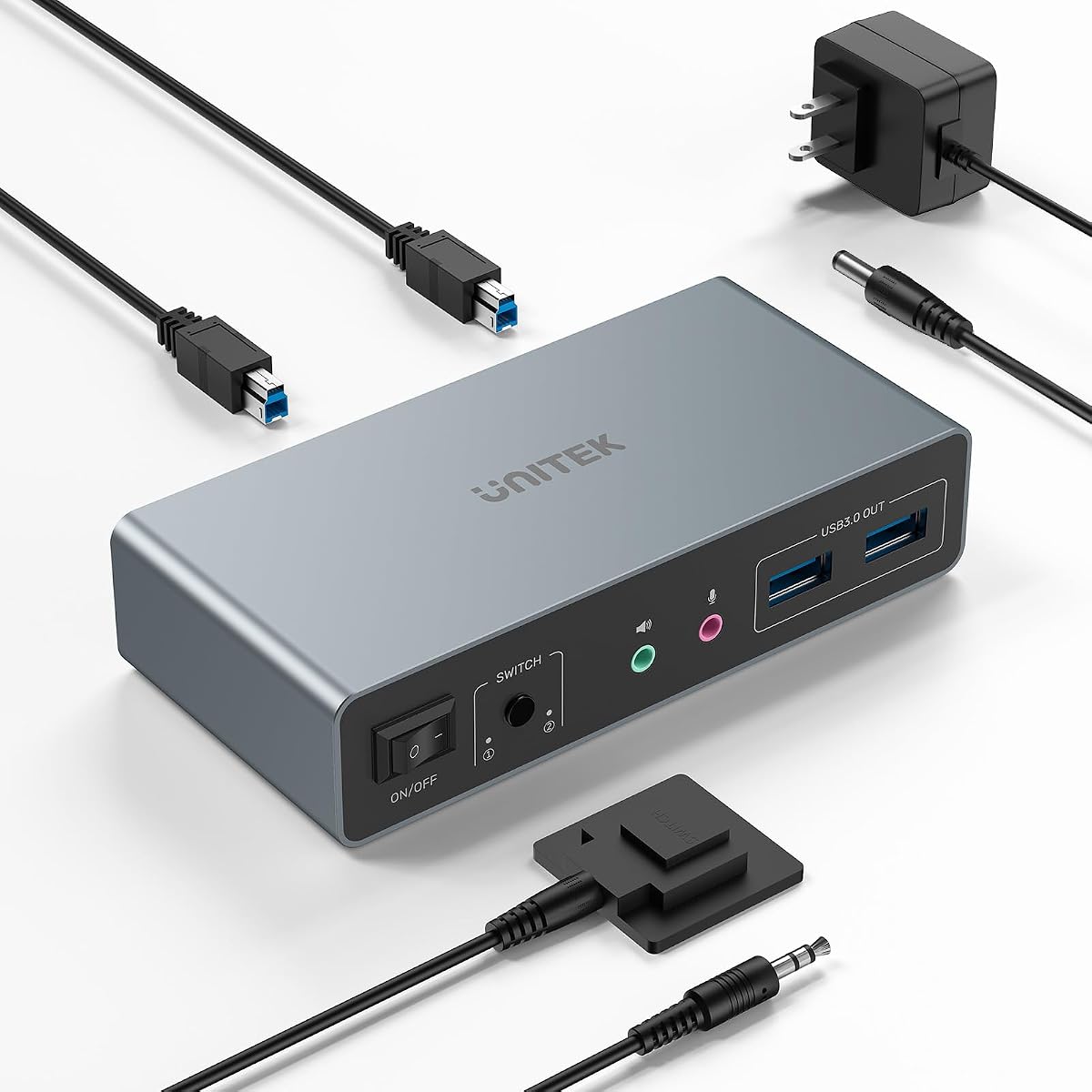
This Unitek KVM switch supports both HDMI and DisplayPort connections for dual monitor setups. It allows two computers to share screens and USB peripherals seamlessly. A desktop controller is included to place the switch away from your desk for a tidy workspace.
We may earn a commission when you buy through this link, at no additional cost to you.
It supports 4K resolution at 60Hz along with 3D and HDR for vibrant visuals. The four USB 3.0 ports provide fast data transfer speeds for connected devices. The package includes necessary cables and a 5V power adapter to ensure stable operation.
However it is designed for desktop hosts only and is not compatible with laptops. You must ensure your hosts have all required ports for simultaneous video and USB connections. This limitation makes it less versatile for users with mixed laptop and desktop environments.
Choose this if you need a hybrid video solution for dual monitor desktop setups. It offers reliable performance and good compatibility with most PC hardware. Ensure your system meets the desktop host requirement before making your purchase to avoid return hassles.
Accommodates both HDMI and DisplayPort sources for flexible connection options across different computer types.
Four USB 3.0 ports allow fast data transfer for peripherals like hard drives and printers.
We may earn a commission when you buy through this link, at no additional cost to you.
This KVM switch enables two computers to share three HDMI monitors and USB peripherals. It supports 4K resolution at 60Hz for clear and detailed visuals across all screens. An external wire controller is included for switching between systems without reaching the device.
We may earn a commission when you buy through this link, at no additional cost to you.
It includes four USB 3.0 ports with data transfer rates up to 5Gbps for fast sharing. The switch comes with a 12V DC power adapter to support high power USB devices like hard drives. This setup is ideal for users needing multiple displays with one set of peripherals.
Each computer must support three screen outputs and connect three HDMI cables to the switch. Hotkey switching is not supported which may inconvenience users who prefer keyboard shortcuts. These requirements can be significant but are necessary for stable triple monitor performance.
Ideal for home offices or workstations requiring extended or duplicate triple monitor views. It simplifies cable management and enhances productivity. Verify your computers support triple displays before purchasing to ensure full functionality of this switch.
Supports three HDMI monitors for expanded screen real estate across dual computer setups.
External power adapter ensures consistent performance for high demand USB devices like external hard drives.
We may earn a commission when you buy through this link, at no additional cost to you.
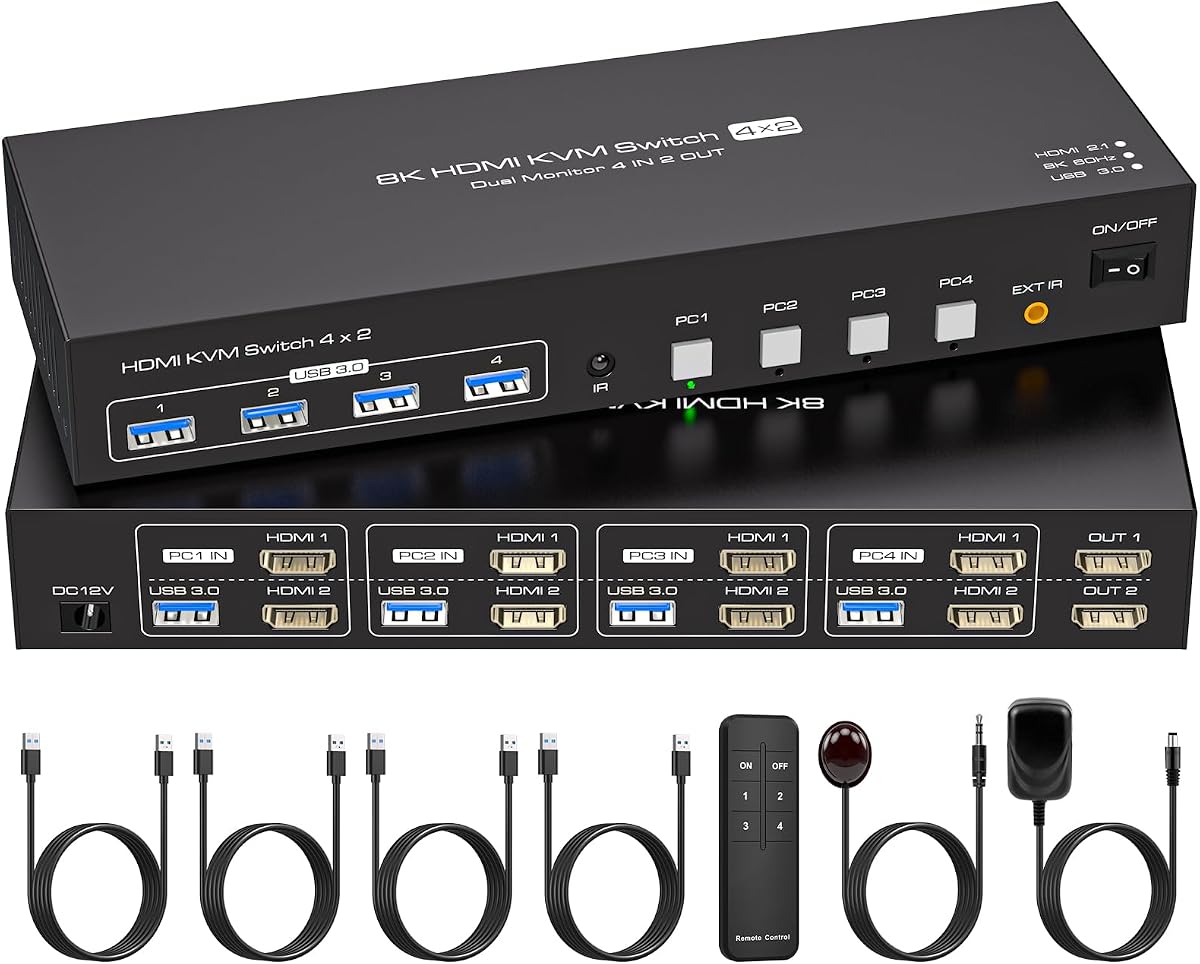
This HDMI KVM switch allows four computers to share two monitors and USB devices efficiently. It supports up to 8K resolution at 60Hz ensuring high fidelity visuals. An infrared remote control is included for convenient switching without touching the unit.
We may earn a commission when you buy through this link, at no additional cost to you.
Built-in EDID emulation saves monitor parameters to prevent window rearrangement when switching computers. The device features four USB 3.0 ports for fast data transfer speeds up to 5Gbps. A 12V external power supply is required for stable equipment operation.
Each computer needs two HDMI ports for this switch to function correctly which may be challenging for some setups. It requires a specific cable configuration to support dual screen output properly. These requirements ensure compatibility but can complicate initial installation.
Best for IT workstations or offices managing multiple machines with shared displays. The ability to switch among four systems saves time and reduces clutter. Confirm your PCs have the necessary HDMI ports before purchase to avoid compatibility issues during setup.
Saves monitor settings to prevent desktop rearrangement when switching between connected computers.
Infrared remote allows quick selection of any of the four connected PCs without reaching the device.
We may earn a commission when you buy through this link, at no additional cost to you.
This KVM device enables remote access over Wi-Fi 6 without needing direct cabling. It features 4K video passthrough and two-way audio for clear communication and management of remote systems. The built-in touchscreen allows intuitive control without technical expertise.
We may earn a commission when you buy through this link, at no additional cost to you.
It uses Tailscale for secure encrypted data transfer between devices which is ideal for home labs and offices. Users can manage it via web cloud control or the GLKVM app on various devices. It also supports self-hosted cloud options for full control over data.
The premium price reflects its advanced networking capabilities which may not be needed for simple local switching. Network reliability can impact performance compared to wired KVM switches. However it offers unmatched flexibility for remote disaster recovery and BIOS access tasks.
Choose this if you need to manage computers remotely with minimal setup. It is perfect for IT professionals managing distributed systems. The secure and flexible architecture ensures you can access and control devices from anywhere reliably.
Wi-Fi 6 dual band support allows flexible remote access without single points of failure in cabling.
Built-in touchscreen and web control make managing network settings and connections intuitive for all users.
We may earn a commission when you buy through this link, at no additional cost to you.
This HDMI KVM switch allows easy management and switching between two computers with dual monitors. It supports 4K resolution at 60Hz with HDR10+ for rich color and realistic images. A desktop controller is included to keep your workspace organized and tidy.
We may earn a commission when you buy through this link, at no additional cost to you.
It includes four USB 3.0 ports with one USB-C for sharing peripherals like printers and drives. The device is plug and play without needing software or drivers. A power adapter is provided to ensure USB devices receive sufficient power for stable operation.
Note that EDID emulation is not supported which may cause display issues on some monitors. Hotkey switching is also unavailable so you must use physical controls to change computers. These limitations are offset by its broad compatibility with various HDMI devices.
Ideal for home offices and professionals needing reliable dual monitor switching. It works well with gaming consoles and PCs alike. Ensure your computers can support dual screen output simultaneously to get the most from this switch.
HDR10+ support ensures vibrant colors and high dynamic range for more realistic visuals on compatible displays.
Works with most HDMI sources including PCs consoles and TV boxes for versatile setup options.
We may earn a commission when you buy through this link, at no additional cost to you.
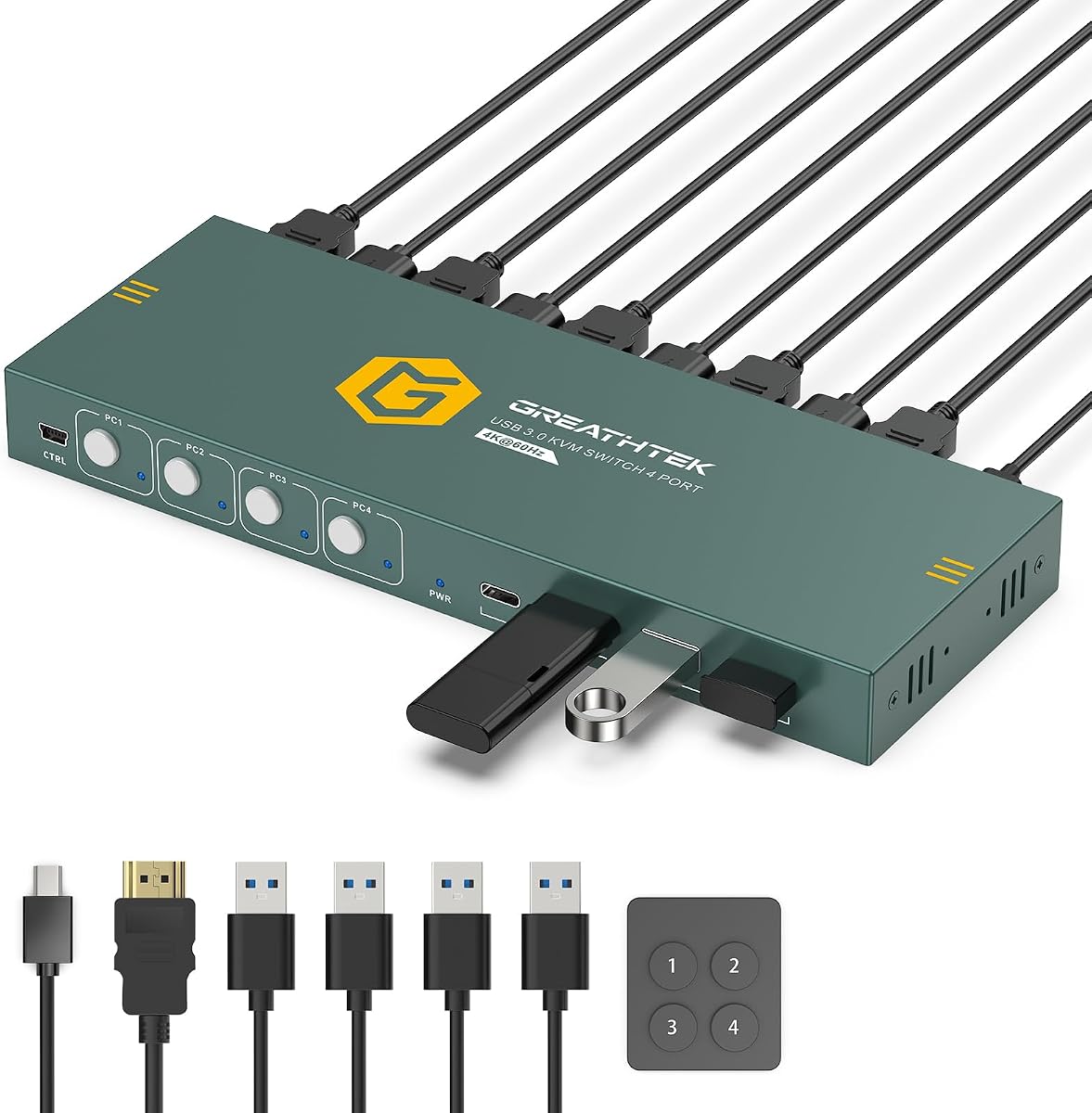
This KVM switch controls four computers with one monitor and keyboard mouse setup. It supports 4K resolution at 60Hz with HDMI 2.0 for clear and smooth video. A wired desktop remote is included for easy one-touch access to each computer via numbered buttons.
We may earn a commission when you buy through this link, at no additional cost to you.
It features four USB 3.0 ports allowing shared peripherals like webcams and flash drives. Adaptive EDID ensures appropriate resolution settings are matched when switching between computers. The package includes under-desk mounting brackets for secure installation out of sight.
Hotkey switching is not supported which means you rely on physical buttons or the remote. It is designed for setups where you need to switch among many PCs with limited screen space. This makes it ideal for test benches or multi PC workstations.
Best for users managing multiple systems on a single screen. The remote and mounting options help keep your desk organized. Ensure all four computers connect with HDMI and USB cables as specified for proper function and stability.
Automatically detects connected displays to match resolution settings when switching between different computers.
Included brackets allow secure under-desk installation to maximize workspace and reduce clutter.
We may earn a commission when you buy through this link, at no additional cost to you.
This compact HDMI KVM switch allows sharing a single monitor and peripherals between two computers. It supports 4K resolution at 60Hz for clear visuals and includes a desktop controller for convenient switching. The device is lightweight and does not require an external power supply.
We may earn a commission when you buy through this link, at no additional cost to you.
It has two USB 2.0 ports which are sufficient for keyboards and mice but may slow down data heavy tasks. LED indicators show which computer is active and the unit is hot-swappable for flexibility. A 24-month warranty ensures peace of mind for buyers.
Note that Mac compatibility is not recommended and cables over three feet may cause flickering. USB 2.0 speeds are slower than modern USB 3.0 standards for file transfers. These constraints are acceptable for basic office tasks with limited data transfer needs.
Ideal for users seeking a small and affordable solution for two PCs. The compact design fits easily on desks or under monitors. Verify your computer compatibility before purchasing to ensure stable performance and avoid connection issues.
Compact form factor and no external power needs make it easy to place in any workspace.
Desktop controller and button switching provide easy access to change active computers quickly.
We may earn a commission when you buy through this link, at no additional cost to you.
Choosing the right KVM switch requires evaluating several key factors based on your setup needs. This section outlines the most important aspects to consider before making a purchase.
Check the maximum resolution and refresh rate the KVM switch supports. Ensure it matches your monitors and graphics cards to avoid performance issues. Some switches support 4K@60Hz while others offer 8K or 144Hz for more demanding tasks.
Select a switch that supports at least the same resolution as your highest quality monitor for best results.
Determine how many computers you need to connect. KVM switches range from 2 to 4 input options. Make sure your setup does not exceed the switch's capacity to maintain stable performance.
Count your active systems and choose a switch with enough input ports to accommodate all of them easily.
Decide whether you need single, dual, or triple monitor support. Some switches handle one display while others manage multiple screens. Verify your computers support multi-monitor outputs to use all available displays effectively.
Match the monitor count of the switch with your current display setup to avoid unused ports or missing features.
Check if the switch uses HDMI, DisplayPort, or a mix. Ensure your computers and monitors have matching ports for proper connection. Some models require specific cables to support higher resolutions or refresh rates.
Verify your hardware ports match the switch inputs before buying to prevent needing extra adapters or converters.
Look at the number and type of USB ports available. Most KVMs include 3.0 ports for fast data transfer. Ensure there are enough ports for your keyboard, mouse, and other peripherals like printers.
Choose a model with sufficient USB ports to connect all your shared devices without extra hubs or splitters.
Consider how you want to switch between computers. Options include panel buttons, desktop controllers, remotes, or hotkeys. Remote and desktop options keep your workspace cleaner while buttons are simpler to use.
Pick a switching method that fits your workflow and desk layout for convenient and efficient computer access.
Some switches need an external power adapter while others do not. Devices with external power handle high demand USB peripherals better. Always check the power requirements to ensure stable operation with your devices.
If you use hard drives or webcams choose a switch with an external power adapter for reliability.
EDID emulation helps your monitors recognize correctly when switching computers. Without it windows may rearrange unexpectedly causing workflow issues. This feature is especially useful for multi-monitor setups.
Prioritize models with EDID emulation if you use multiple screens to avoid desktop configuration changes.
Connect all computers to the KVM switch using the appropriate video and USB cables before plugging in the switch itself. Ensure that each device has enough power and ports to support the connections required for your setup.
Once connected press the button or use the remote to select the computer you want to control. The switch will manage the keyboard and mouse inputs so only one machine is active at any given time.
Regularly clean the switch and check cables for wear to maintain stable connections. Avoid moving cables while in use to prevent damage and ensure long-term reliability for your devices.
A KVM switch allows you to control multiple computers with a single set of keyboard, mouse, and monitor. This reduces cable clutter and saves space in your workspace while making it easier to switch between different systems quickly.
Some KVM switches work with laptops but many require desktop hosts with specific video ports. Always check the product specifications for laptop compatibility before purchasing to ensure your devices will connect properly.
Most modern KVM switches include USB 3.0 ports for fast data transfer. Ensure your switch supports USB 3.0 and provides adequate power so connected devices like external hard drives work correctly.
Common issues include incompatible ports missing power supply or using low quality cables. Verify your computers support multi-monitor outputs if required and ensure all cables are connected securely to the correct ports.
Many KVM switches support 4K resolution at 60Hz or higher. Check the product specs to confirm it matches your monitor and graphics card capabilities for the best viewing experience without performance loss.
You can switch using physical buttons on the device a desktop controller a remote, or sometimes keyboard shortcuts. Choose the method that best fits your workflow and workspace setup for easy access.
Most KVM switches have minimal impact on gaming if they support high refresh rates. Ensure your switch handles the resolution and Hz your monitor needs to avoid stuttering or lag during gameplay.
Some KVM switches require an external power adapter to ensure stable performance especially with multiple USB devices. Check the product description to see if it needs external power before purchasing.
We reviewed ten KVM switches covering various needs from triple monitor setups to remote access capabilities. The top picks include high resolution models and budget options to suit different user requirements.
Prioritize resolution support number of monitors and switching methods that match your workflow. Ensure your computers support the necessary ports before purchasing to avoid compatibility issues during setup.
Remember to check current availability and details as product features and prices can change. Use this guide as a starting point to find the KVM switch that best fits your workspace needs.